Working With MS Paint to Get the Right Size Banner Image
It is very important that the images you upload to put in the banner section of your website is the right size if it is going to look right. All banner images must have the dimensions of 1600 by 560 pixels
Here is an example of a skewed banner image with the wrong size (800 by 277 pixels)
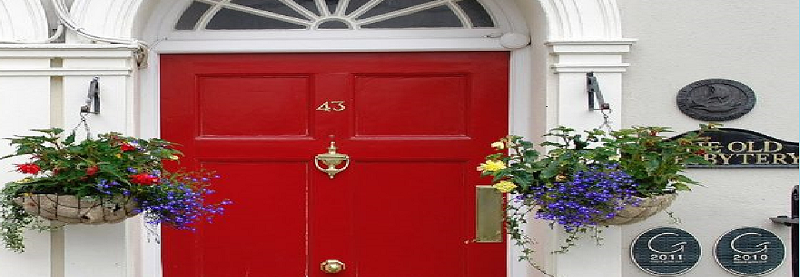
(skewed image – 800 by 277)
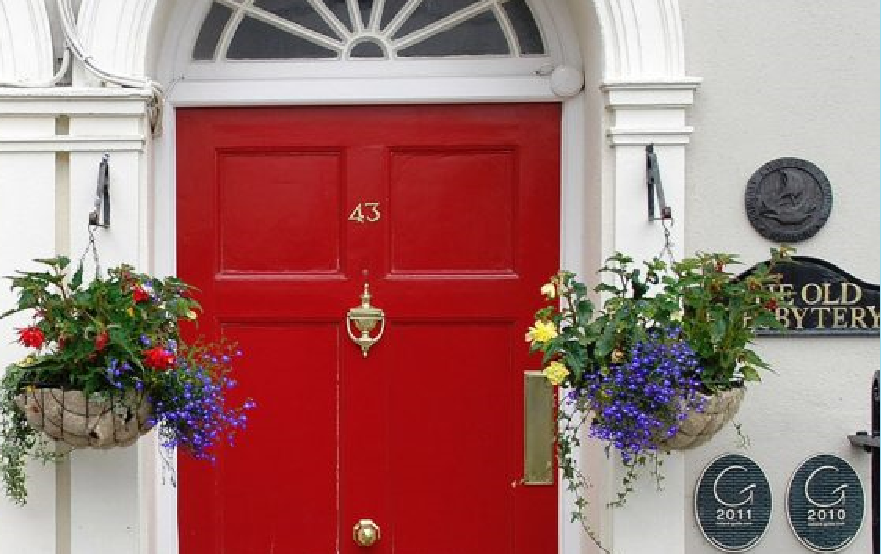
(Here is the original image – 561 by 358)
How to Fix a Banner Image – Method 1
We will take the 561 by 358 image and make it 1600 by 560 pixels using paint.
- Open up a new canvas using paint and make this blank canvas 1600 by 560 pixels.
- In the drop down select menu, select pick “select all” to select the entire blank box
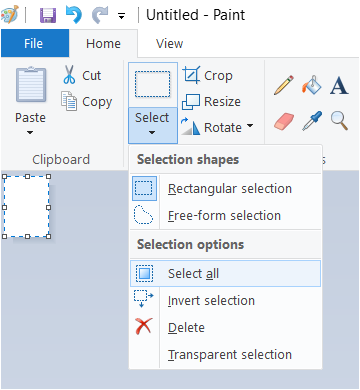
- Now pick Resize
- Turn off Maintain aspect ratio
- Change pixels to 1600 by 560
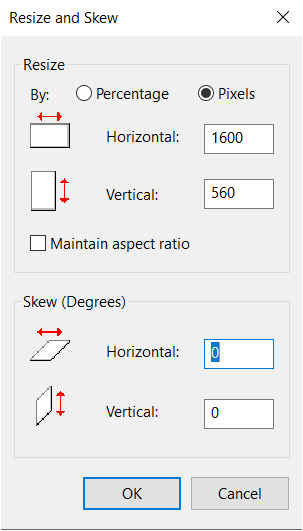
3. Now open the picture you want to use.
- Find the size of this image
- Do “select all”
- Do “Resize” and select pixels.
- This will show you the size of the picture. (In this example, the image is 561 x 358)
- Now copy this image to your new 1600×560 blank canvas
- Do select all, then click copy.
- Go to the blank canvas and click paste.
- Next, using the resize feature, you want to make this image (358) the same height (vertical) as the blank canvas (560)
- Make sure you have selected just the image 1st or you will resize the entire canvas.
- If you already did that, it’s OK. Just use the CTRL-Z key to undo what you did.
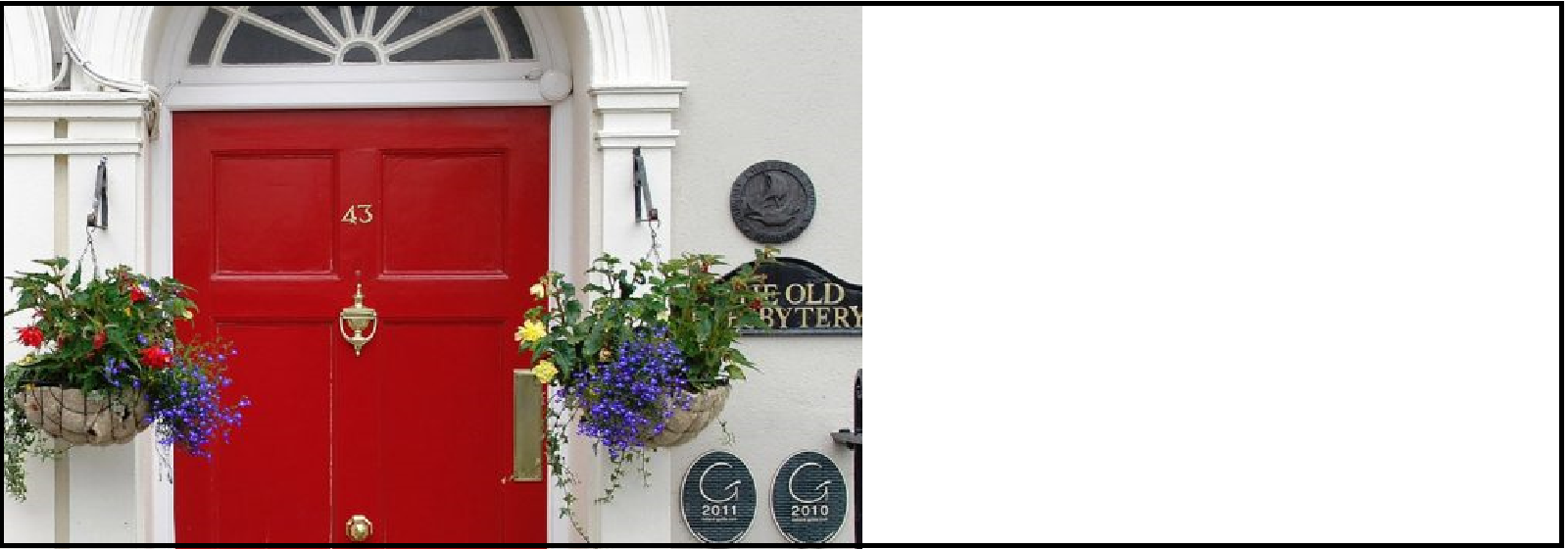
- If you resized correctly (with Maintain aspect ratio checked) you get and image that looks like this.
- You can either use this image ‘as is” for your banner…
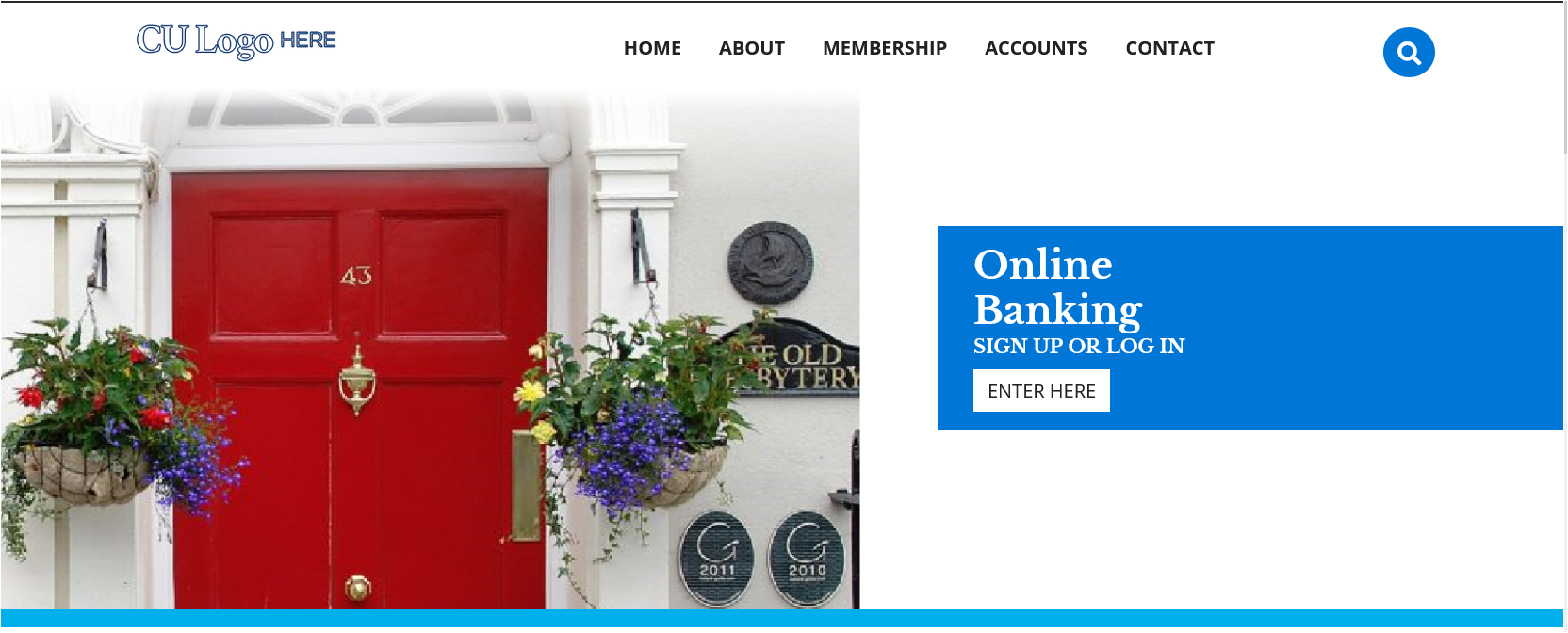
- Or you can use the paint bucket tool in paint to color the right white side
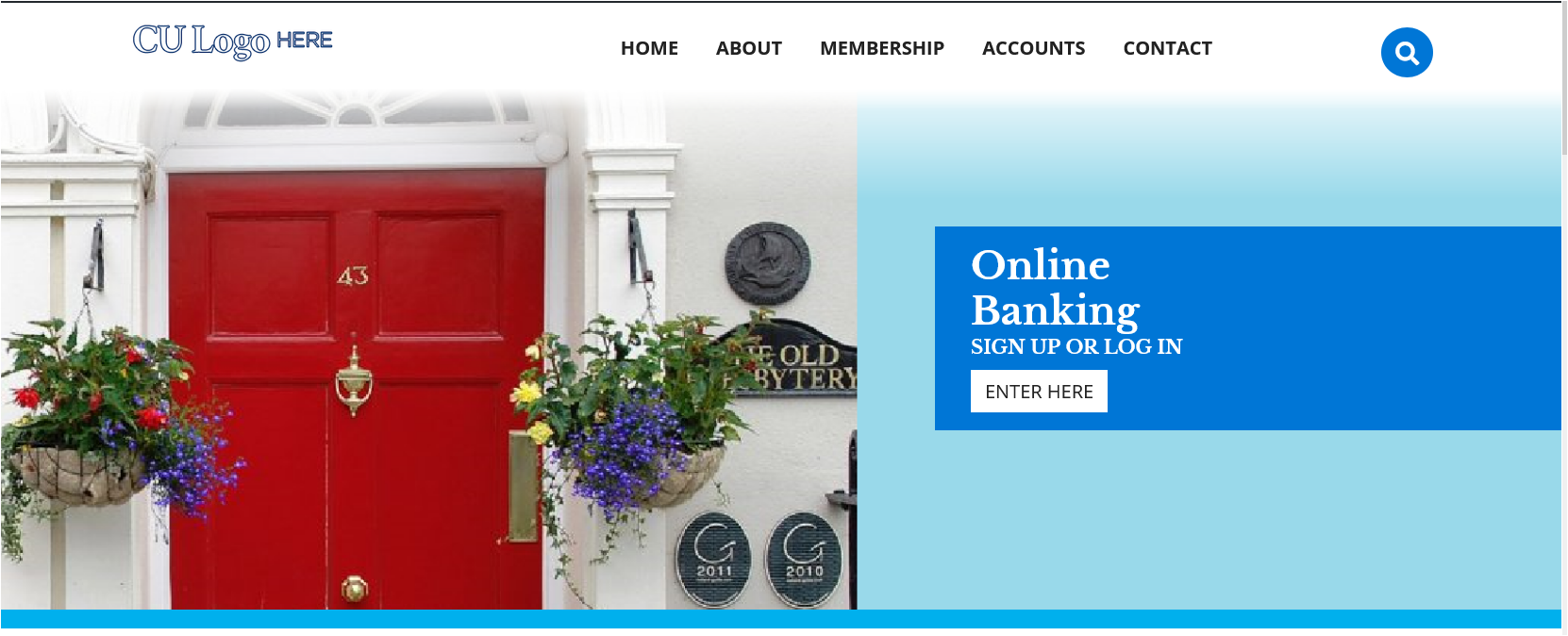
How to Fix a Banner Image – Method 2
- Another thing you can do is to go back to your original image and try to crop it so that the aspect ratio will be 4:3 (Remember, the original image is 561 x 358 and we want it to be 1600 x 560.)
- Crop the image to a 4:3 ratio and move it to the top of the canvas
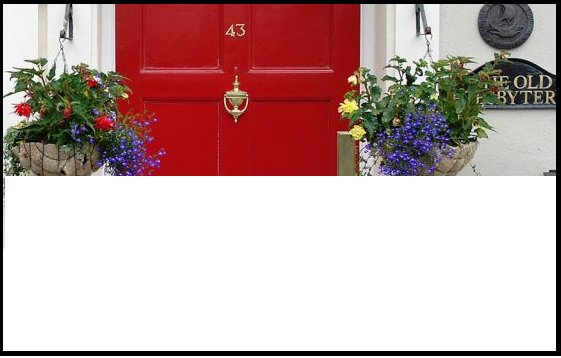
- Cut the white part of the image, and you will have something that looks like this.
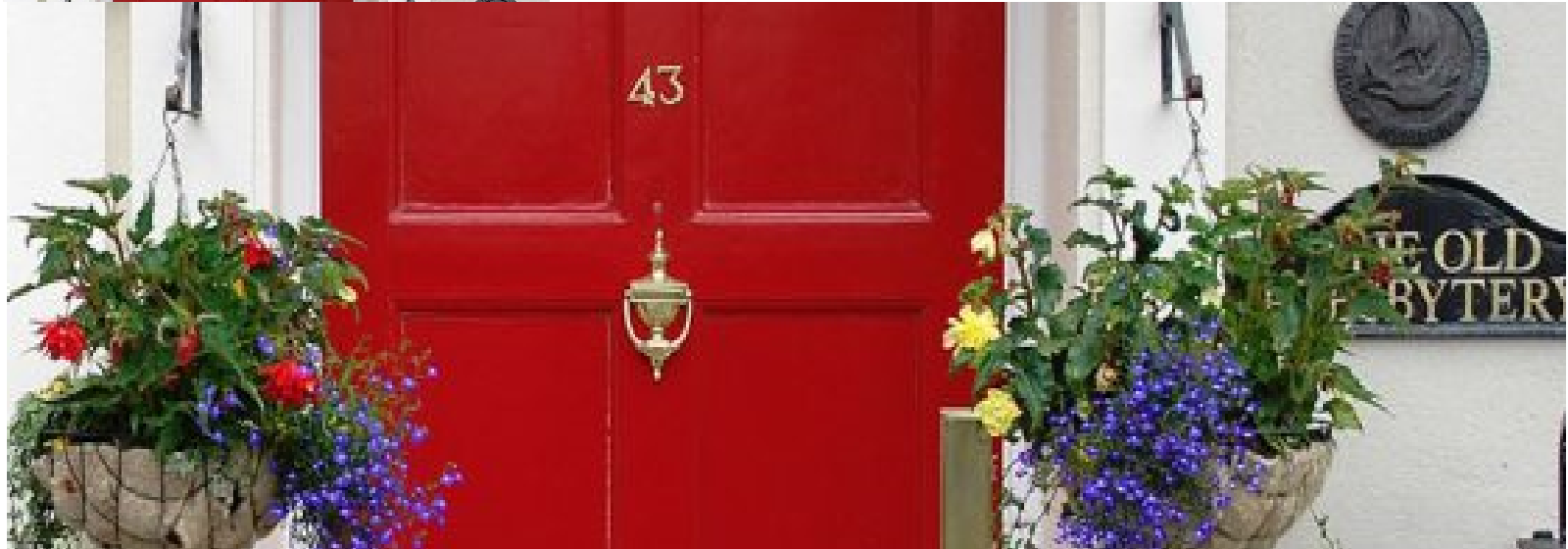
- Finally, resize the image to 1600 by 560
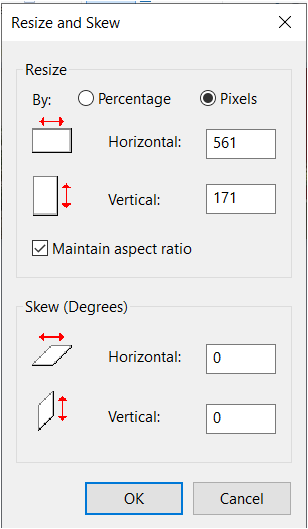
Original
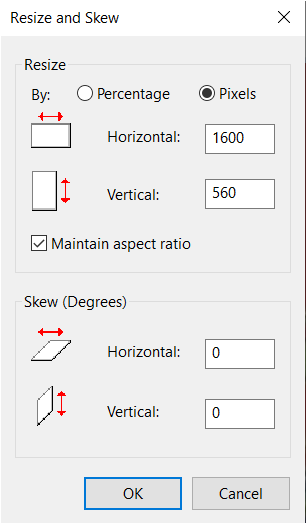
Resized
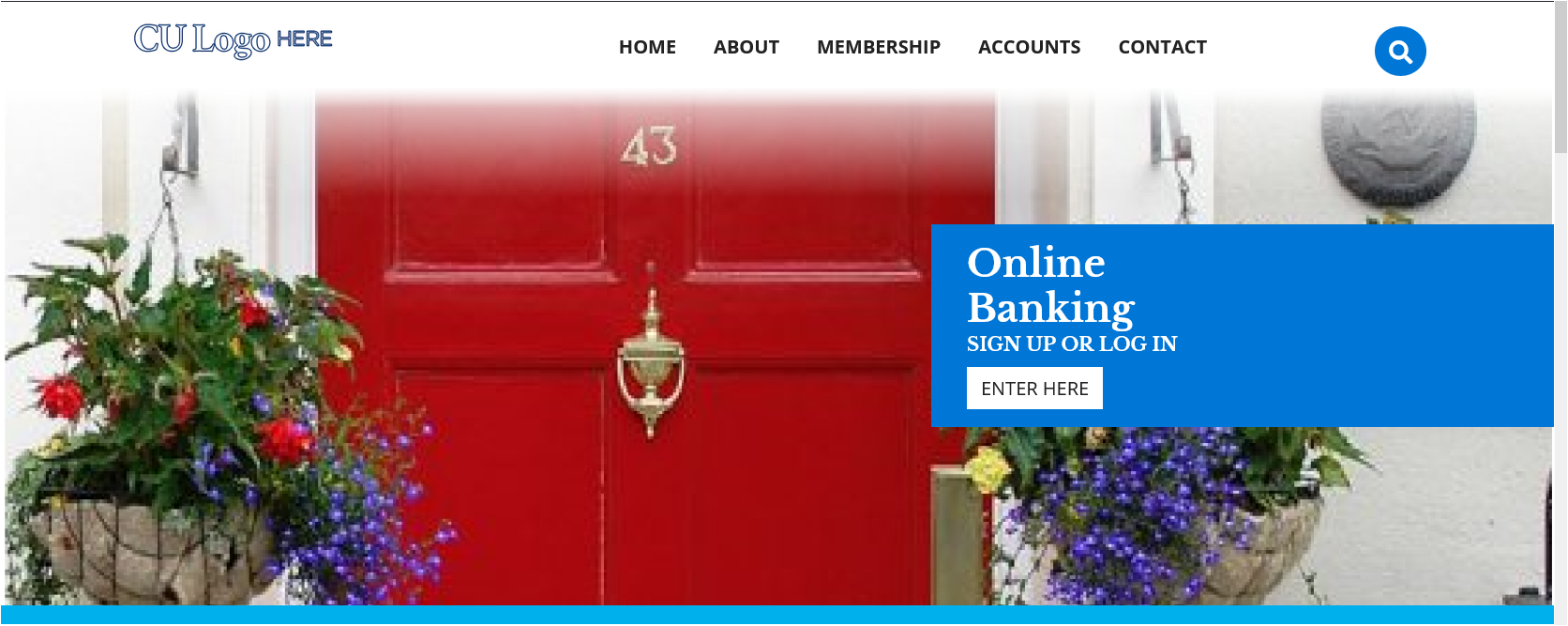
Note that the door image is just for illustration because it is easy to see what has been moved and cropped.