Working with Tables in Pages and Posts
A table is like a spread sheet in appearances. You have calls and rows where you can organize and present your data in. There are 2 ways you can create tables – in the visualizer and in the text editor. I will show you both methods.
Creating tables using the Visualizer
- Click on the grid icon to open up the table editor. Use this to create your table. In this case, it will be 6 columns by 10 rows
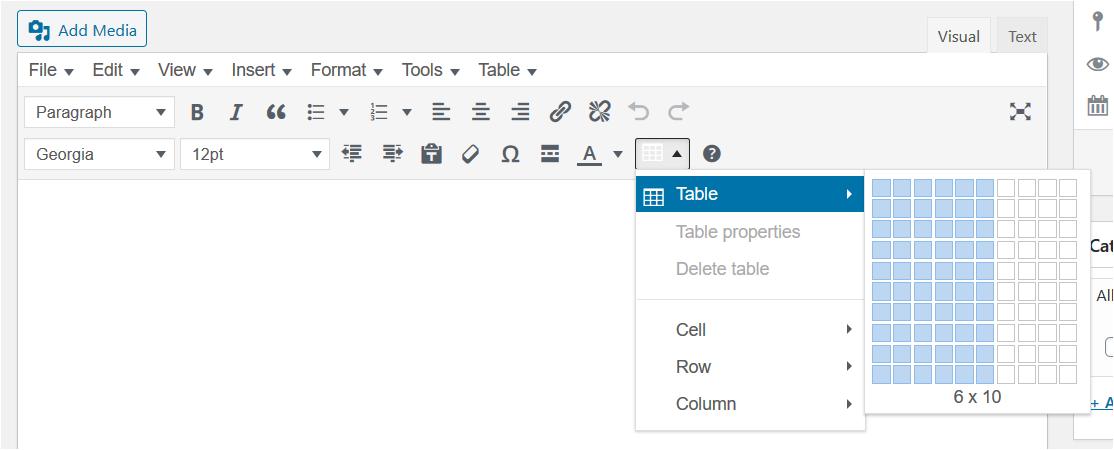
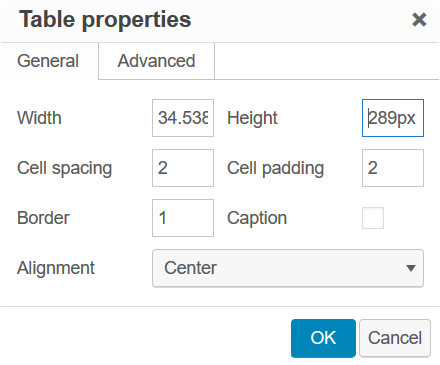
- Configure the table by going to table properties
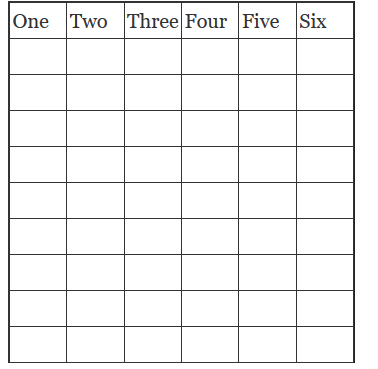
- Now you can start populating your table
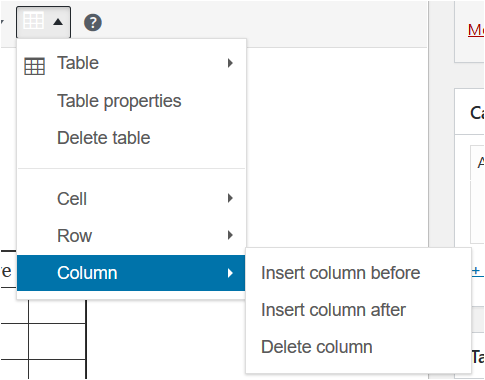
- Go to the table menu to add or delete additional rows or columns. (In this example I will delete columns and rows to leave this a 3 by 4 table)
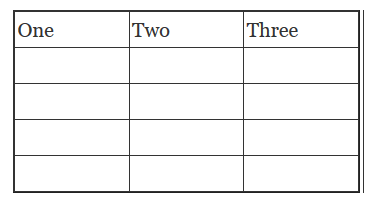
- How to merge several columns into one like this example
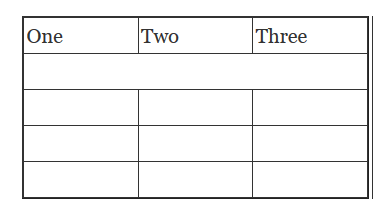
- Select the columns you want to merge
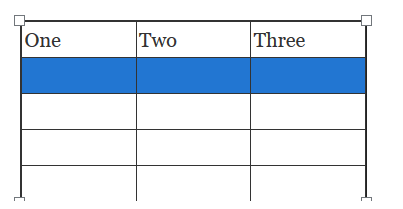
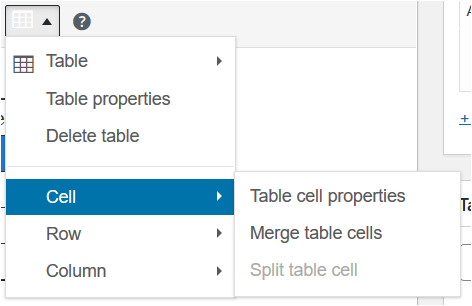
- Go to table menu, cell, merge table cells and select.
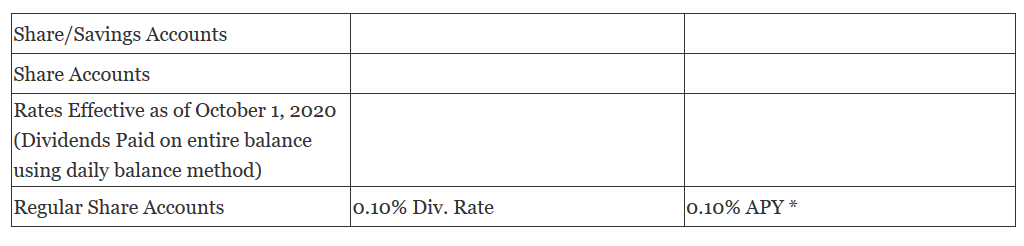
- Here is a plain 3×4 table that we need to configure.
-
-
- Merge rows 1,2,3 with the columns next to them.
- Add a blank row after row 1, and merge all the cells
- Bold some text
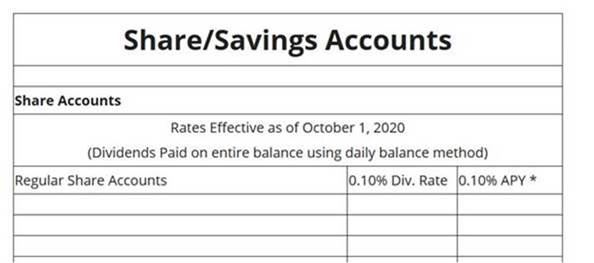
- And here is the results.
-
Creating tables using the Text HTML Editor
Here is the same “Visualizer Editor How To” using the text editor and HTML code.
- Configure the table – You start with your table tag
<table> <tbody>
- You can add height, width, and a boarder with the following tags
<table style=”height: 116px; width: 100%; ” border=”1″> <tbody>
- Remember for every tag, you must have an end tag, so lets add the end closing tags next.
</tbody> </table>
- Now you only have a box – a 1×1 table.

- To add a row, you use the <TR> </TR> tags.
- To add a Column you use the <TD> </TD> tags.
- The following code makes a simple 1×4 table
<table style=”height: 116px; width: 100%; ” border=”1″> <tbody>
<TR> <TD> </TD></TR>
<TR> <TD> </TD></TR>
<TR> <TD> </TD></TR>
<TR> <TD> </TD></TR>
</tbody> </table>

- Same thing, but make this a 3 x 4 table
<table style=”height: 116px; width: 100%; ” border=”1″> <tbody>
<TR> <TD> </TD><TD> </TD><TD> </TD></TR>
<TR> <TD> </TD><TD> </TD><TD> </TD></TR>
<TR> <TD> </TD><TD> </TD><TD> </TD></TR>
<TR> <TD> </TD><TD> </TD><TD> </TD></TR>
</tbody> </table>

- Do a merge on line 2, merging all 3 columns with the colspan=”3″ command
<table style=”height: 116px; width: 100%; ” border=”1″> <tbody>
<TR> <TD> </TD><TD> </TD><TD> </TD></TR>
<TR> <TD colspan=”3″></TD></TR>
<TR> <TD> </TD><TD> </TD><TD> </TD></TR>
<TR> <TD> </TD><TD> </TD><TD> </TD></TR>
</tbody> </table>

- Make the 1st column 60% of the table.
<table style=”height: 116px; width: 100%;” border=”1″><tbody>
<tr>
<td style=”width: 60.0000%;”>One</td>
<td style=”width: 20.0000%;”>Two</td>
<td style=”width: 20.0000%;”>Three</td>
</tr>
<TR> <TD colspan=”3″></TD></TR>
<TR> <TD> </TD><TD> </TD><TD> </TD></TR>
<TR> <TD> </TD><TD> </TD><TD> </TD></TR>
</tbody> </table>

- And here is the finished product
<table style=”height: 116px; width: 100%;” border=”1″><tbody>
<tr><td colspan=”3″><strong>Share/Savings Accounts</strong></td></tr>
<TR> <TD colspan=”3″></TD></TR>
<tr><td colspan=”3″><strong>Share Accounts</strong></td></tr>
<tr><td colspan=”3″>
Rates Effective as of October 1, 2020
(Dividends Paid on entire balance using daily balance method)
</td></tr>
<tr>
<td style=”width: 60%;”>Regular Share Accounts</td>
<td style=”width: 20%; height: 24px;”>0.10% Div. Rate</td>
<td style=”width: 20%; height: 24px;”>0.10% APY *</td>
</tr>
</tbody>
</table>
References for HTML code