WordPress Control Panel
When you first login to your new website, you are greeted with the WordPress Control Panel.
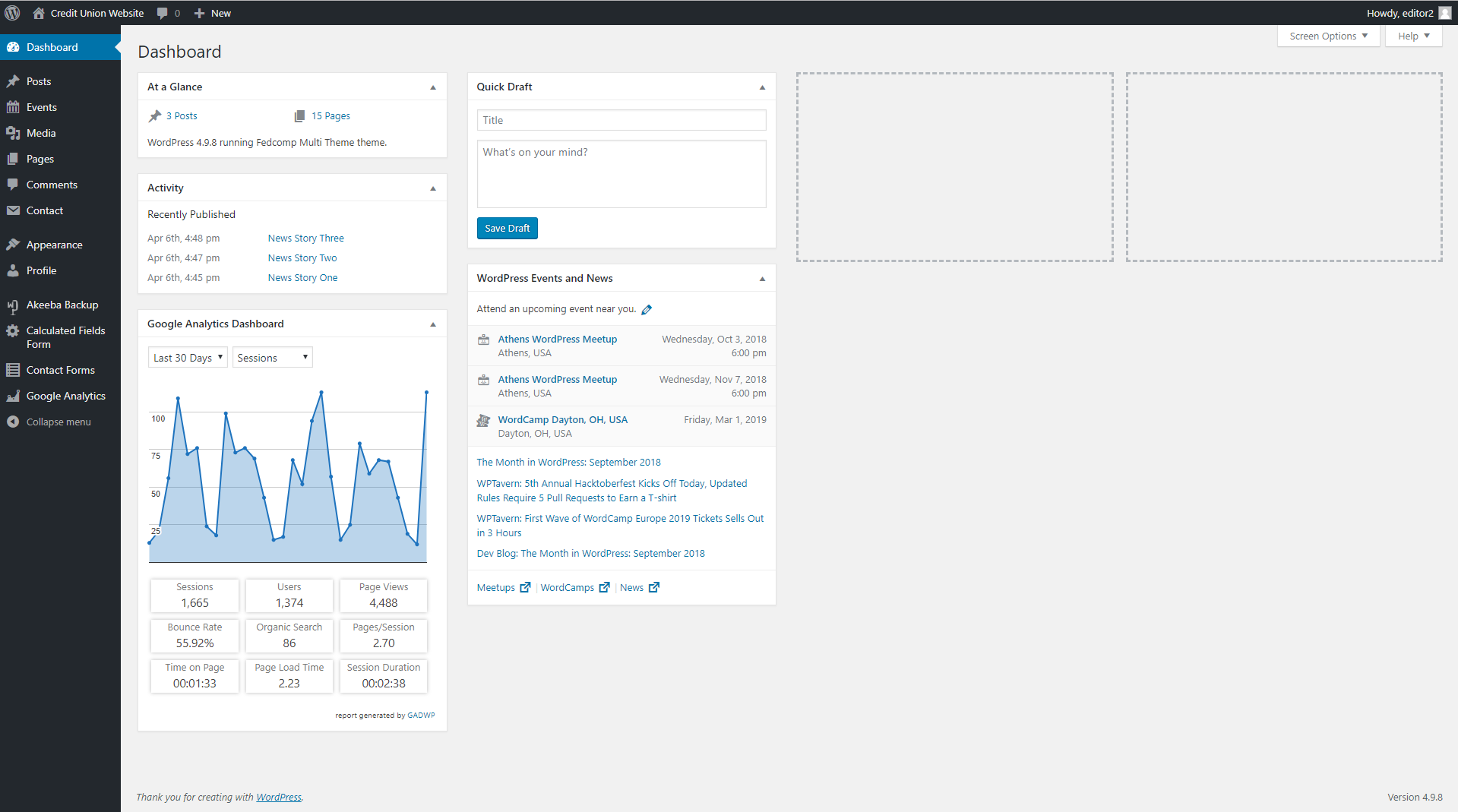
On the left you see some menu options for navigating the control panel. On the right side, you see some different widgets, which can help provide some basic information for your site.
Dashboard:
- At a Glance
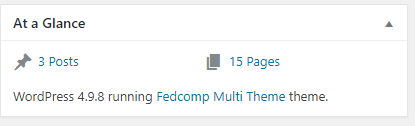
At a Glance shows a listing of all posts and pages that your site has installed in it. It also lets you know what version of WordPress is currently running, and which theme your site is running.
- Google Analytics Dashboard
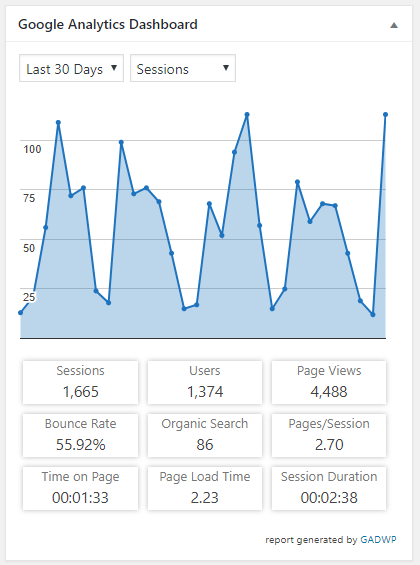
The Google Analytics Dashboard shows you some quick overview information about who has been visiting your site. The Sessions relates to the total pageviews, while the Users is the unique individuals.
- Activity
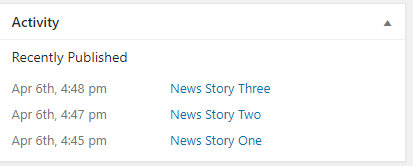
Your activity shows you the latest things that have been published on your site.
- Quick Draft
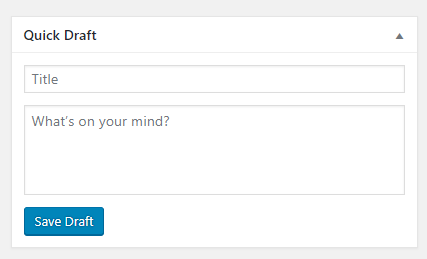
Quick Draft allows you to create a new post, quickly from the control panel, and save it as a Draft to be referred to later.
WordPress Events and News – A news feed from WordPress allowing you to stay in the know, for new wordpress news.
The Menu
The menu allows you to access different portions of your of your website. We’ll quickly go over what exists inside of each section that you may need to access to change the content on your website.
Dashboard
The home button for the control panel. This will take you back to the screen when you originally login
Posts
This will take you to your posts. Posts are individual, blog listings. Your site may refer to these as News, but any grouped content pages that are ordered by date of posting is considered a “blog”.
- All Posts: Shows a listing of all posts that are on your site.
- Add New: Quick menu item for adding a new post to your site
- Categories: Allows you to manage the categories for your posts, which you can use to logically group your posts together.
- Tags: For advanced users, allows you to create custom Tags that you can apply to your posts.
Events
This is where you would go to edit and update your events.
- All events: Shows all event listings currently on the site.
- Add new: Quick menu item for adding a new event to the site
- Categories: Allows you to manage the categories to logically group events together.
- Tags: For advanced users, allows you to create custom Tags that you can apply to your posts.
- Venues: Allows you to manage venue locations for the events. These venues are located independently of events, so if any information on the venue changes, you can update it across all events at once.
- Calendar View: Shows you your events, in the backend of WordPress in a Monthly, Weekly, or Day view.
- Extensions: For advanced users, adding in extra extensions and functionality to your calendars. Any editing of these things are not supported by FedComp.
Media
Where you go to upload/manage Images and PDFs that you would like to use on your website.
- Library: shows a listing of the current listing of items you have uploaded to your site.
- Add New: Allows you to upload new items to your Media Library
- Media Folder Galleries: Advanced portion of the media section. Used to push out new Stock Images as FedComp introduces it. Please refrain from editing in this.
Pages
Pages is your sites main content. Usually, these will be the pages that are linked to from your menu structure.
- All pages: shows a listing of all pages on the site
- Add new: A quick menu item for adding a new page
Comments
By default, comments are disabled on your site to eliminate spam. If they were active, this is where you would go to manage those comments, approve them or remove them.
Contact
This is where you go to create/edit the fields that are in your forms, or create new forms.
- Contact Forms: A listing for all contact forms on the site
- Add new: A method for adding a new form to the site
- Integration: A method for adding in additional functionality to the site. This is for advanced users and is not supported by FedComp.
Appearance
Appearance is where you for to maintain specific portions of your of your site, including the content on the homepage, the footer content, and the menu structure
- Menus: Allows you to control the different menu structures on the site. Excludes the Icon Navigation, if you have this enabled.
- Theme Content: Allows you to control the custom content on the homepage such as the slideshow, Mobile Banking link, Content, and the content in the footer.
Profile
Where you can go to edit your account information that you use to login to WordPress.If you need to change your password, email or contact information, or if you want a slightly different color scheme for the wordpress backend, you would go here to do so.
Contact Forms
This shows you the submissions for your contact forms. All contact form submissions are saved in the database, so you are able to go here to see, and delete, any submissions that have come through on your Contact Form
Google Analytics
Where you would go to edit content related to the Google Analytics Users. For advanced users only.