Adding images to pages and posts
To add an image to your page, there are two steps you need to do, and we will show you how to do both.
- Uploading Images.
You can not put an image on your website directly from your computer. You must upload an image into the media library first. That is where your website pulls all of it’s images from. Here is how to do that.
-
- You can access your media library two ways, One is from the admin menu (black) on the left side of your page (Media) and the other is directly from your post (Insert Media Button)
- When the media selection opens, you have several categories you can choose from. (See Media Library post for more information Media Library Post)
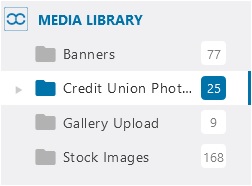
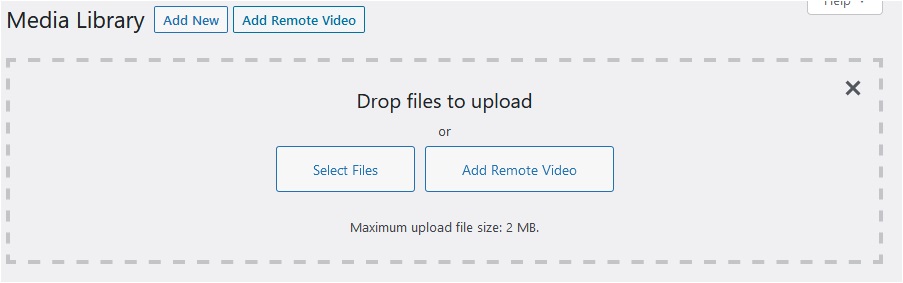
- To upload an image from the library, click on the ADD NEW button at the top.
(Make sure you have selected the Credit Union Photos category first so in uploads into the right area)
Then select the SELECT FILES button and pick the file to upload from your computer.
-
- Now the image is ready to use on your website.
- Inserting into post
-
- To insert a stock image into your post, put the mouse at the beginning of the place where you want to insert the image.
- Click the ADD MEDIA button to open up the media library.
(Notice that you have two tabs at the top UPLOAD FILE and MEDIA LIBRARY. To select files already uploaded make sure you are on the Media tab.) - Go down to Stock Images or the Credit Union Photos category to select the image that you want to use.
- In the sidebar on the right, scroll down to the bottom category Attachment Display Settings And pick the size you want to use. Remember, once you insert the image, you can always resize it in the post.
- Click the blue INSERT INTO POST button at the bottom right.
- Now you can resize the image by grabbing the corners and clicking. You can also change the justification of the image by clicking on the 4 alignment buttons below.
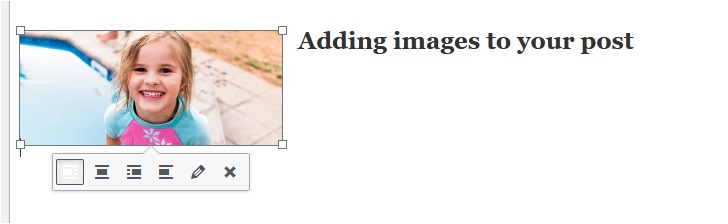
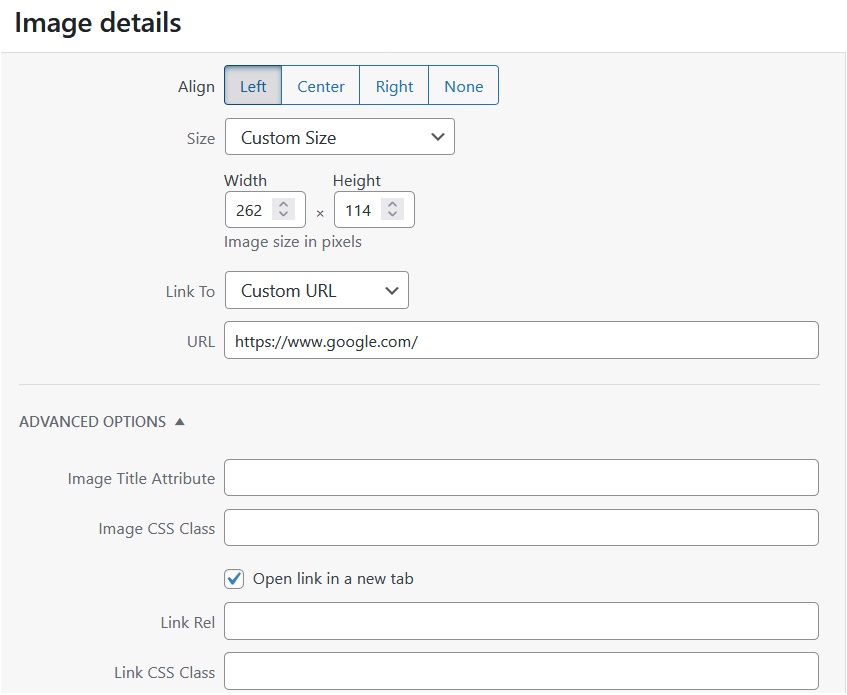
- You can make this image go to an outside web page by clicking on the edit button (pencil), change the LINKED TO drop down to CUSTOM URL and pasting the URL in the box.
- Finally, click the OPEN LINK IN A NEW TAB box to make sure your users do not loose your Credit Union’s page.
(To edit a post, read the Pages and Posts post at Pages and Posts)